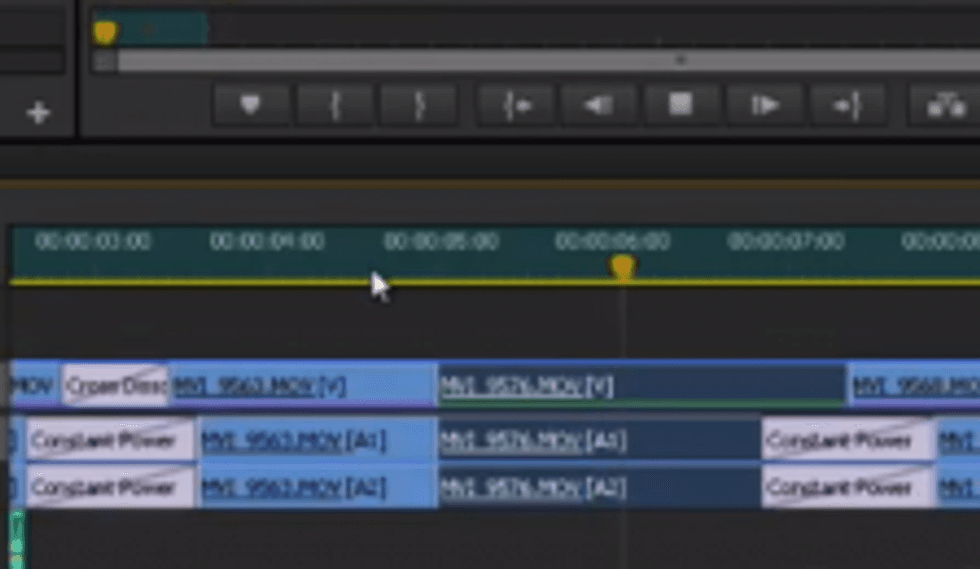
 Using a mouse to trim might be one of the most counterintuitive and time-wasting things that we as editors do on a day-to-day basis. Since that's how many of us learned to edit -- by clicking through the buttons and dragging things around in our favorite NLEs -- editing with the mouse has become one of those unfortunate behaviors inherent in our processes. However, if speed and precision are something for which you strive for with your editing, the mouse is your arch nemesis. By learning a few simple keystrokes and committing them to memory, you can take your timeline trimming to another level.
Here's a quick excerpt video from Lynda.com's excellent Premiere Pro CS6 New Features series that should get you up to speed with the quickest ways to trim in Premiere:
First and foremost, and I can't stress this enough, editing with the keyboard is only as effective as the shortcuts that you use. If the preprogrammed Adobe shortcuts aren't easy for you to remember, you probably won't save time by using them, so you should absolutely map your own. I've personally been using a strange combination of Avid and Final Cut 7 keyboard shortcuts for the past few years, and it's become second nature to edit with those keys. As an added bonus, now that your keyboard presets will be stored in the cloud with Premiere Pro CC, you'll never have to worry about rebuilding your keyboard profile from scratch ever again!
Another significant note from this video is the tip towards the end in which Harrington uses the "Ripple Trim Next/Previous Edit to Playhead" commands to accomplish in one step what would usually take two or three steps with conventional three-point editing techniques. Of course, getting this functionality to boost your trimming speed is once again a matter mapping these commands to something that makes sense to you.
What do you guys think? Do you do most of your editing and trimming with the keyboard? If so, do you have any tips or additional suggestions that aren't covered in the video? Let us know in the comments.
Link: Using shortcuts for a fluid, high performance workflow -- AdobeTV