The Clip You Were Going to Cut Around for Better Audio
Premiere's new Enhance Audio pulls a recording apart into voice, music, ambience, and effects so you can rebalance it. Part 1 of our series on generative tools in Premiere and After Effects.
Every edit has one. The take is the take you want: the answer the whole scene hangs on. But the room is wrong. An air conditioner hums under the entire thing, traffic leaks in from a window, and somebody left a music bed running on set. So you do what editors do. You cut around it, reach for a second plugin, or tell yourself the mixer will sort it out.
The trouble is that a clip like that is not one problem. It is several problems fused together. Pull the noise down and the voice goes thin. Lift the voice and the room rides up with it. Every fix is a trade because the tools treat the clip as a single slab of sound.
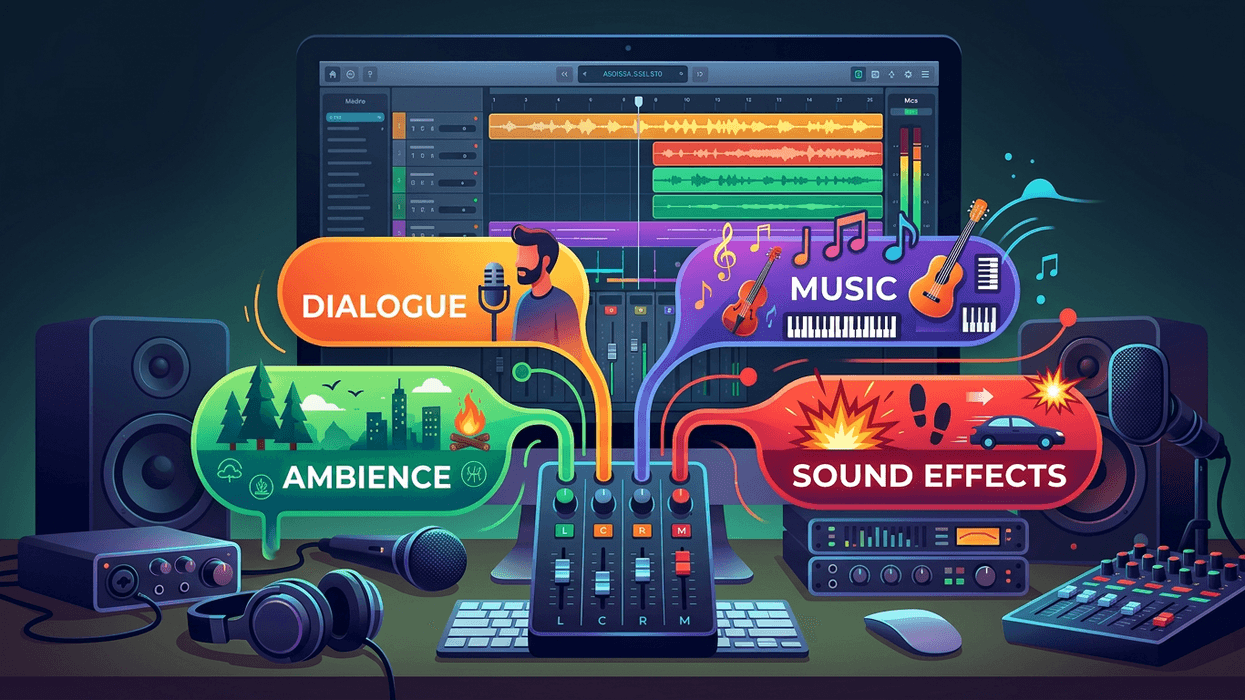
Enhance Audio, now in the Premiere beta, starts from a different idea: take the slab apart. It separates a clip into speech, music, ambience, sound effects, and reverb, then gives you a control for each. Enhance a clip and you can lift the dialogue on its own, tuck the ambience underneath it, or mute the music bed entirely, watching the waveform change as you go.
Dialogue gets the most attention. You decide how much cleanup it receives, from the original recording all the way to the full treatment, and a Reverb control lets you pull the room off the voice. That last one depends on the clip. A recording from a very reverberant space can change a lot, while a dry one barely moves. So the move is to listen, not assume.
The part that matters when you are actually cutting is that you can keep cutting. On an earlier version of Enhance Speech, every trim, fade, or cut sent the clip back for another render. That is gone. Premiere also processes five seconds of handles on each side of the clip, so you can pull edits out within them without reprocessing, and if you go past them, it only analyzes the new stretch.
You do get one decision to make. Enhance Speech V1 runs on your machine, costs no credits, and still gives you the full separation. V2, Adobe's highest-quality voice model, runs in the cloud through Firefly and draws two generative credits per minute from the pool included with your Creative Cloud subscription. Think of it as the quick pass versus the best pass, and you can switch clip by clip.
None of this finishes the mix for you. After you enhance, listen to the dialogue alone, then in context with everything else, and if the voice starts to sound processed, ease the cleanup back. Check that the music and ambience still sit right now that the dialogue is cleaner, duck music under speech where they fight, and play it on more than one speaker before you export. It’s the simplest way to keep the cleanup invisible, so viewers hear the performance and not the processing.
For editors, the payoff is simple. The take you thought you had to cut around may be one you can keep. You can make that call inside Premiere, as part of the edit, and keep changing your mind without waiting on another render. It won’t turn a bad recording into a good one, but it gives you far more to work with before you give up on a clip.
Enhance Audio is not available in the Premiere beta. The beta is available from your Creative Cloud downloads. Run it on the clip you were dreading and see what holds up.