Get Faster Load Times for Your Blackmagic Cloud Projects With Latest Resolve Update
Here’s everything you need to know about DaVinci Resolve Update 20.1.1 and its faster load times, improved retention options, and cleaner layer and node layouts for PSD imports.
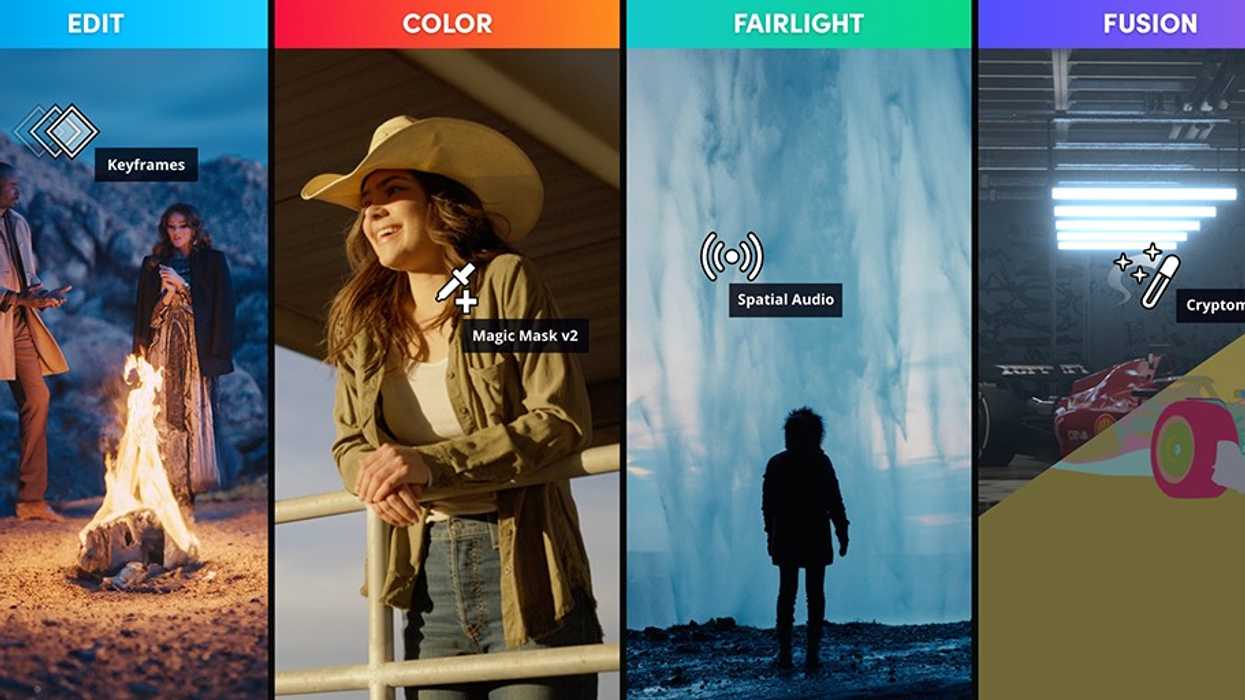
DaVinci Resolve Update 20.1.1
Another slightly-major firmware update is out for DaVinci Resolve that is set to add and address many new features in Blackmagic Design’s editing platform. As is always the case, these updates are highly recommended not only for the new features and improvements, but also because they fix minor bugs and generally improve stability as well.
If you’re a Resolve editor and looking to keep your software at its best, here’s everything you need to know about what’s new in Resolve 20.1.1.
DaVinci Resolve Update 20.1.1
The most significant news here is the announcement from Blackmagic Design that this new update will allow for faster load times for Blackmagic Cloud projects with stacked timelines. The other big highlights include improved retention of clip copy and paste options, cleaner layer and node layout for PSD imports in Fusion, and other helpful upgrades.
Here’s the full list of the features that have been added or updated to DaVinci Resolve:
- Addressed cloud project load time with stacked timelines enabled.
- Addressed attributes dialogs to retain user selections till next copy.
- Addressed retime and motion persistence in paste attributes.
- Addressed issues with loading and importing PSDs in a comp.
- Addressed issue with enabling aux channels in Swizzler.
- Addressed Fusion magic mask offset when switching modes.
- Addressed issue with lens space transforms on Fusion compositions.
- Addressed media out in color or mix mode not reflecting magic mask.
- Addressed hang with media out in mix mode in some scenarios.
- Addressed crash with depth map on some Intel Macs.
- Addressed crash loading incorrectly formed MTS clips.
- Addressed incorrect fps interpretation in some mkv clips.
- Addressed Dolby Vision ISXD metadata formatting issues.
- Addressed 3D qualifier and 3D keyer in DaVinci Resolve Renderer.
- Addressed restoring dual screen when switching between pages.
- Improved bit rate and quality layout for Windows native codecs.
- General performance and stability improvements.
How to Install Today
Installation of this latest version of DaVinci Resolve is quite easy. You can check out the update itself on Blackmagic’s website here. And copied below are the steps for installing on different operating systems.
Installing DaVinci Resolve Software on MacOS
Double-click the DaVinci Resolve Installer icon and follow the onscreen instructions. To remove DaVinci Resolve from your system, double-click the Uninstall Resolve icon.
Installing DaVinci Resolve Software on Windows
Double-click the DaVinci Resolve Installer icon and follow the onscreen instructions. To remove DaVinci Resolve from your system, go to the Programs and Features control panel, select DaVinci Resolve, click on Uninstall and follow the onscreen prompts.
Installing DaVinci Resolve Software on Linux
Double-click the DaVinci Resolve installer and follow the onscreen instructions. To remove DaVinci Resolve from your system, select the uninstall option after running the installer.
For DaVinci Resolve 20.1.1, we have taken efforts to keep the project libraries compatible with DaVinci Resolve 19.1.4. While this allows you to access the project library with 19.1.4, individual projects created or opened in 20.1.1 will no longer be accessible in 19.1.4. We recommend a full project library backup as well as individual project backups before opening projects in 20.1.1.
- A Colorist’s Perspective: Practical Comparisons of DaVinci Resolve and Apple Color ›
- New DaVinci Resolve Update Adds Cache Clearing and Fusion Effects Fixes ›
- DaVinci Resolve 19.0.2 Offers Improved Audio Alignment and More New Support ›
- DaVinci Resolve Adds Support for Apple Immersive Workflows With Major Firmware Update ›
- DaVinci Resolve Adds Support for Apple Immersive Workflows With Major Firmware Update ›
- DaVinci Resolve 20.0.1 Update Improves Its AI Music Editor and Other Features ›
- Want to Improve Audio Quality When Capturing from Your Computer? | No Film School ›