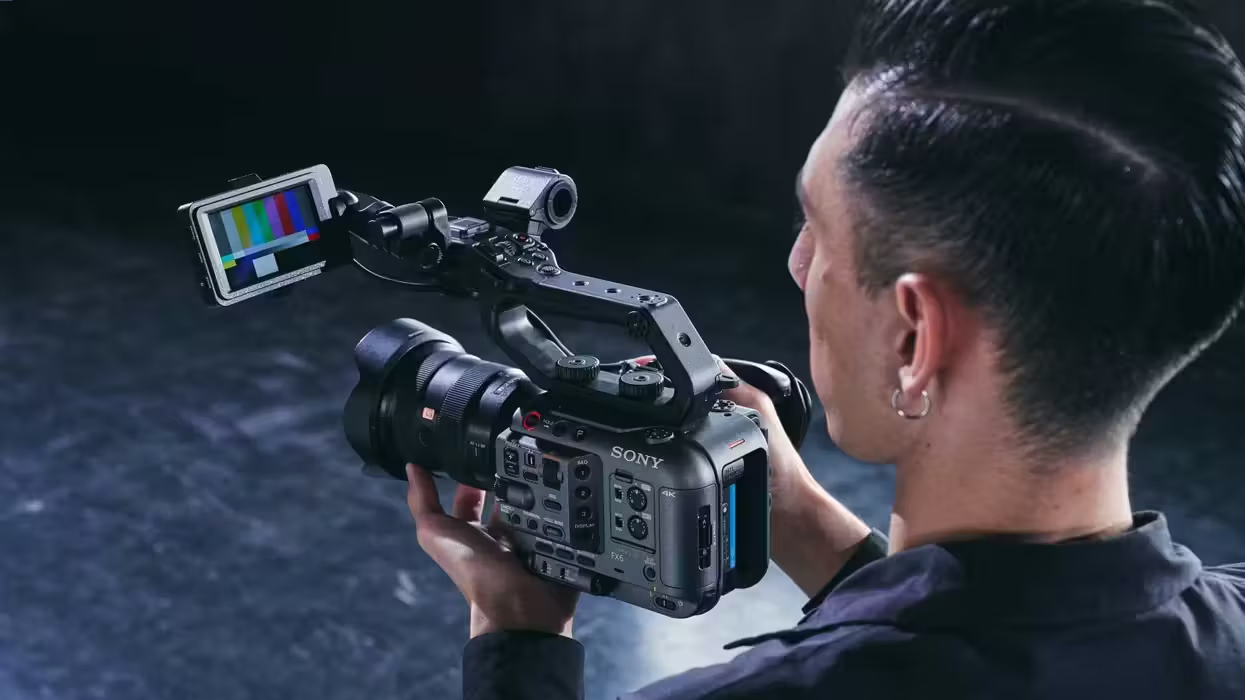
We know, firmware updates aren’t the sexiest news in the world. They’re not as exciting as major mergers like we saw with GoPro today, but they’re an important part of a filmmaker's life, as any working film or video pro knows: keeping gear updated and ready to go matters.
With that being said, you don’t always want to instantly download and install the latest firmware updates right away, just in case they might cause new issues. Usually waiting a few days or weeks isn’t a bad idea either.
That said, if you want to keep your Sony FX6 up to date, this new firmware version is out, and while it’s not major, it offers slight improvements and fixes a few potential issues that could pop up.
Here’s what you need to know.
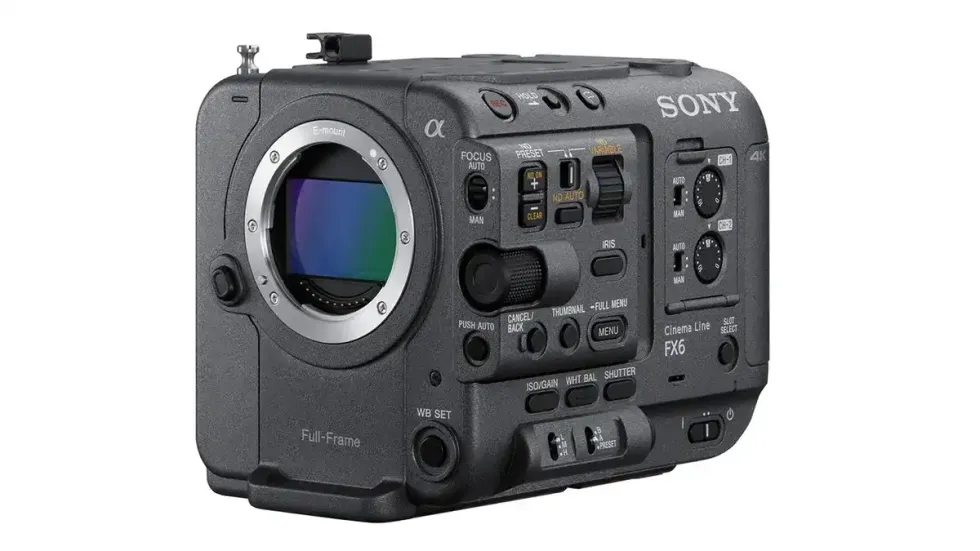
Sony FX6 Firmware Update 6.01
Credit: Sony
Unlike some previous firmware updates we’ve seen for the Sony FX6, this isn’t a major one. This update, firmware version 6.01, is being released mainly to fix a few issues where noise could occur in some playback audio clips recorded at very specific settings.
The update also makes a few improvements to color reproduction in highly saturated areas, a nice update worth adding for sure, as well as some improvements to general operational stability and other minor notes.
Here’s the full list of the benefits and improvements set to come to the Sony FX6 with this latest update:
- Improves error messages displayed during recording
- Fixes an issue where noise may occur in the playback audio after playing multiple clips recorded at 59.94P and 23.98P continuously for an extended period. (The recorded content itself is not affected.)
- Improves color reproduction in highly saturated areas
- Improves the operational stability of the camera
How to Update the Sony FX6
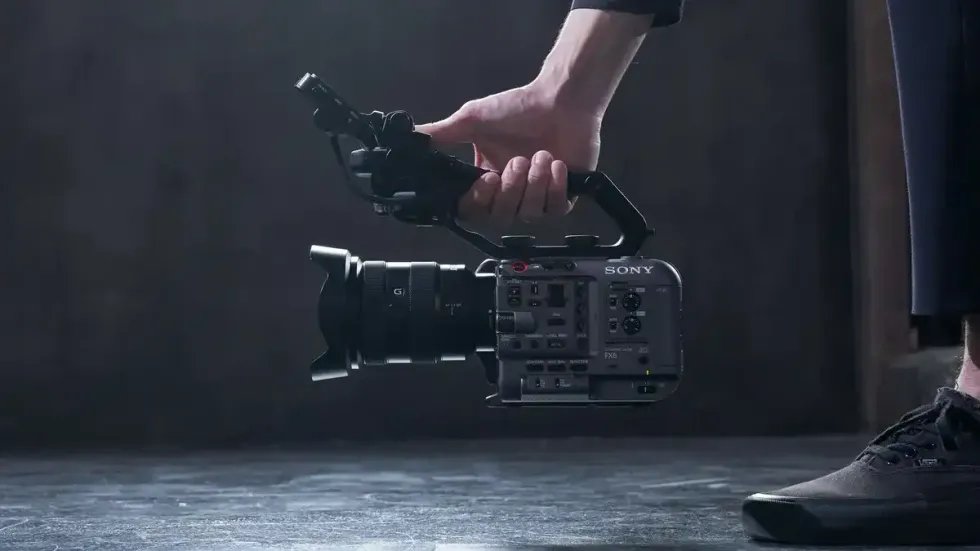
Credit: Sony
Updating the Sony FX6 is similar to updating any other Sony camera, and you can do it a couple of ways. However, the company notes that when upgrading from version 5.02 or earlier to version 6.01, your previous settings will not be retained, and the camera will reset to the default settings.
If you do want to retain your previous settings, save them in an All File before upgrading, and then load the saved All File after the upgrade is complete.
You can follow the steps to download and install the update from there on the company’s website here.
- The Sony FX6 Finally Gets Its Big Update, Adding More Shooting Display Options ›
- Sony’s Latest Firmware Updates for Several FX-Line Cameras Offer “BIG” New Features ›
- See What Firmware Updates Are Planned For Your Sony Cinema Cameras ›
- Sony Fixes Minor Audio Issues with FX6 Firmware Update Version 5.01 ›
- Sony Updates FX6, FX3, and FX30 With Features We All Want ›