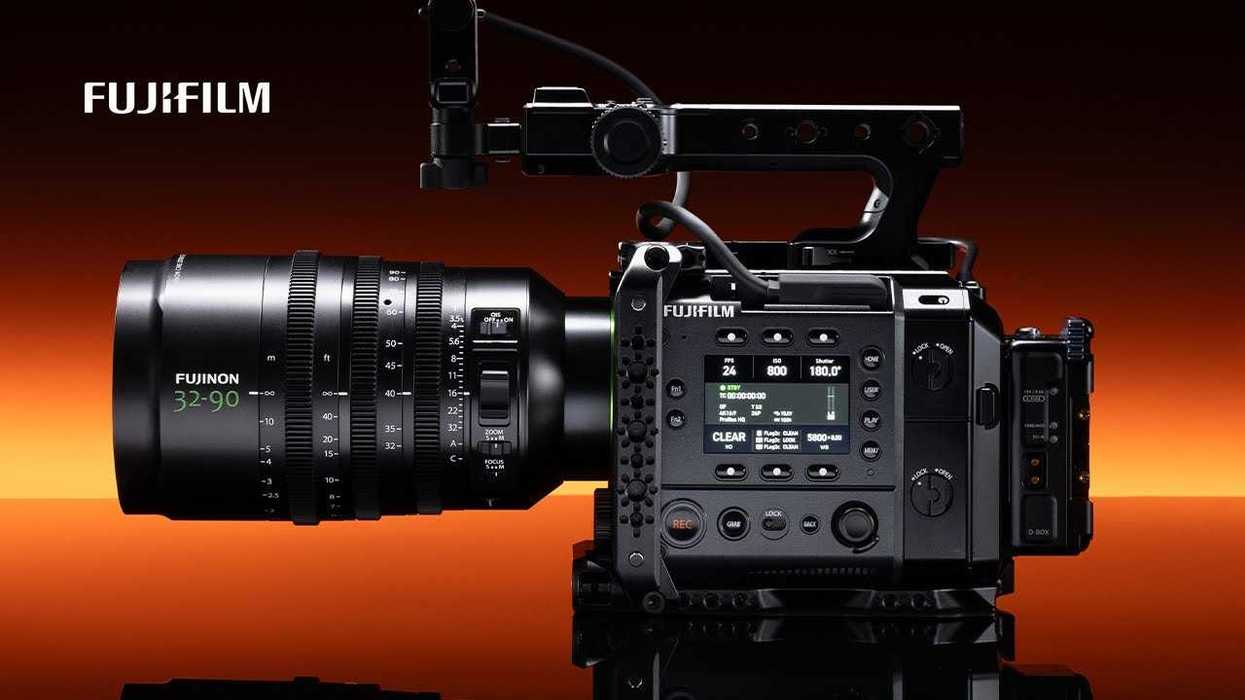
We got a major news alert for those of you who are using or interested in using Fujifilm’s new large-format cinema camera. The GFX ETERNA 55 is getting a new firmware update (version 1.02) that is set to add external RAW recording capabilities to Atomos devices by way of HDMI and SDI inputs.
The update will also offer a pretty wide range of performance improvements, menu functionality, and fix a handful of bugs and issues that have popped up in a few instances for Fujifilm’s exciting new large-format cinema camera option.
Here’s everything you need to know.
Fujifilm GFX ETERNA 55 Firmware Update
Being released as firmware update version 1.0, this latest update for the GFX ETERNA 55 is really highlighted by this external RAW recording function being added to Atomos devices. This new firmware enables the FUJIFILM GFX ETERNA 55 to make external RAW recording by 4:3 open gate, 4K, and up to 48fps.
Plus, as Fujifilm notes in its firmware update announcement, this RAW output will now be available via SDI in addition to HDMI, which should help enable versatile use across various film production environments.
There are some menu cosmetic and functionality updates that are noteworthy, as the display design of the menu screen has been changed, and the brightness of the side monitor can now become darker than the previous conditions with new setting operations.
Full Update Details
Here’s the full breakdown of everything new with firmware update version 1.02 for the GFX ETERNA 55:
- External recorder recording function to ATOMOS devices is newly added.
This new firmware enables the FUJIFILM GFX ETERNA 55 to make external RAW recording by 4:3 open gate, 4K, and up to 48fps.
Additionally, RAW output is newly available via SDI in addition to HDMI, enabling versatile use across various film production environments.
Please be sure to update your external recorder to the latest firmware before use. please see here. - The display design of the menu screen is changed.
- The brightness of the side monitor becomes darker than the previous condition if the [-5] is selected for the brightness of the [Side monitor] through the following operation.
[SET UP] ➔ [LCD SETTING] ➔ [LCD BRIGHTNESS] - Look & feel of the [TIME CODE] display shown on the [Side monitor] is improved.
- Response times becomes shorter when operating the following settings.
Operation Settings:[FPS], [ISO], [SHUTTER], [ND], [WB], [PROJECT FPS], [RESOLUTION] and [IMAGE FORMAT] - The default (starting) value for [Clip No.] is changed from 0000 to 0001.
- The default value for [SHARPNESS] is changed from 4 to 0.
Note: Be aware that you need to initialize the camera to make the above change take effect.
(1)The recording does not start while AF is locked with touch AF through the following operation flow.
[FOCUS] ➔ [TOUCH SCREEN MODE] ➔ [AF]
(2)Selecting [RESET ALL EXCEPT NETWORK SETTINGS] does not reset the [TIME CODE] through the following operation flow.
[TIME CODE] ➔ [COUNT UP SETTING] ➔ [FREE RUN]
(3)The aperture value cannot be changed when selecting [IRIS] in the [RECORDING] menu under the following setting conditions.
・Use GF lenses with an aperture ring other than the GF32-90mm T3.5 PZ OIS WR.
・Set the aperture ring position to C.
・Select [T NUMBER] of the [IRIS DISP] in the [RECORDING] menu.
(4)The [CUSTOM ASPECT] is not displayed at the correct aspect ratio.
(5)Synchronization failure of the [TIME CODE]
(6) The side monitor display occasionally remains in REC mode even after stopping REC.
(7) The outside side monitor turns off occasionally when starting and stopping REC repeatedly.
(8) The outside indicator lamp remains lit or remains off occasionally when starting and stopping REC repeatedly.
(9) The default setting for the mount adapter should be [OFF], but it is set to [Lens 1].(10) Loading more than 13 LUT files may cause unstable operation.(11)Other minor bugs.
Firmware Update Steps
And here are the firmware update steps as outlined by Fujifilm on the company’s website here.
- Check the firmware version.
- Prepare a formatted memory card.
- Download the firmware and copy it to the card.
- Put the memory card with the firmware in the camera and update it.
FUJIFILM GFX ETERNA 55 Cinema Camera

FUJIFILM brings its vaunted photographic history to a video-centric form with the GFX ETERNA 55 Cinema Camera.
- Can Fujifilm's First Filmmaking Camera Bring Balance to the Large Format Market? ›
- Insights Into the Design of the Fujifilm GFX ETERNA 55 and How it Came to Be ›
- Gear Up for the Fujifilm GFX Eterna 55 With This Huge Selection of Pro Accessories ›
- Here’s Your Hands-On Guide to Setting Up the New Fujifilm GFX ETERNA 55 ›
- DP Oren Soffer’s Short Film Shows You Exactly What the GFX ETERNA 55 Can Do ›
- Fujifilm Fixes Monitor Display Issues With Latest Firmware Update for GFX ETERNA 55 ›
- Fujifilm Adds Its Widest Cinema Power Zoom to Its GF Lens Lineup Yet ›
- Fujifilm Releases Firmware Update for GFX ETERNA 55 Plus Roadmap Future Improvements ›