A New Hotkey and Major Performance Boosts Highlight Latest DaVinci Resolve Update
Here’s everything you need to know about what’s been added or updated in Blackmagic Design’s DaVinci Resolve 20.2.3 update.
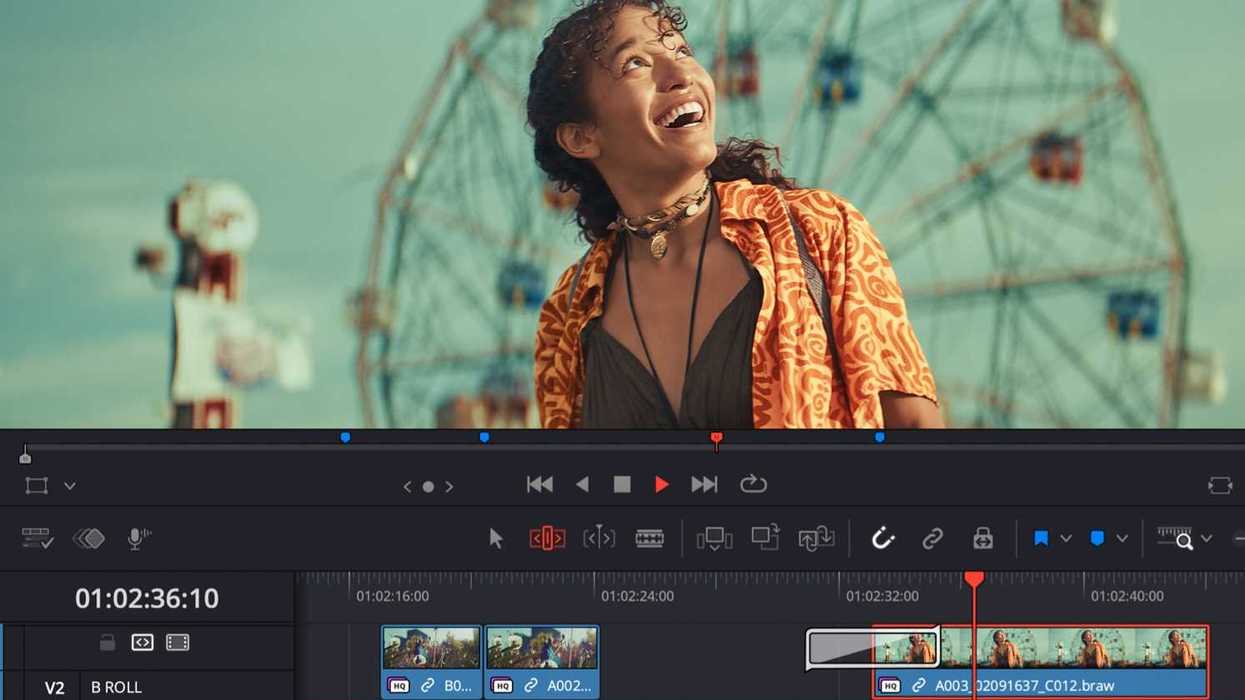
DaVinci Resolve Update 20.2.3
We got to start with the most exciting news here at the very top: DaVinci Resolve is getting a new hotkey to quickly open the timeline keyframe and curves tray. What a time to be alive!
All joking aside, this is a pretty significant update to DaVinci Resolve that adds a ton of new improvements, including some significant boosts to performance for some fun tools like Magic Mask, Depth Map, and Super Scale on Windows Intel GPUs.
There’s also new support for Blackmagic RAW SDK 5.1 and other improvements. Here’s everything you need to know.
DaVinci Resolve 20.2.3 Update
As is the case with most of these DaVinci Resolve updates, there are some big changes and many minor ones. The minor ones are mostly addressing small issues with audio playback or decoding—nothing serious, but always worth the update to be safe.
The big news is a new keyboard customization action to toggle the timeline keyframe tray, as well as the aforementioned performance boosts on Intel GPUs.
You can read all of the new features that have been added or updated below:
- Support for Blackmagic Raw SDK 5.1.
- Up to 4x faster Magic Mask, Depth Map, Super Scale on Intel GPUs.
- Keyboard customizable action to toggle timeline keyframe tray.
- Pasting spline window tracking data no longer resets spline shape.
- Workflow integration plugins are now persisted across restarts.
- Data burn-in honors limit timecode display to 24 hours.
- Object masks now invalidate for edit and input sizing changes.
- Addressed issue blading all clips under playhead in Fairlight.
- Addressed possible audio playback issue when using Mac trackpad.
- Decode support for WEBM and MKV clips with VP8 video codec.
- Addressed an issue with decoding some MP4 clips.
- Addressed an issue with decoding some MKV FFV1 files.
- Addressed issue loading templates with very large thumbnails.
- Addressed deep image issues with proxy scaling and flipbook.
- Addressed DCTL issues with some ACES 2.0 EOTFs.
- Three-dot option menu action to reset all scopes settings.
- General performance and stability improvements.
How to Download and Install
Downloading and installing this latest update is quite easy; just follow the steps listed below for your operating system.
Installing DaVinci Resolve Software on MacOS
Double-click the DaVinci Resolve Installer icon and follow the onscreen instructions. To remove DaVinci Resolve from your system, double-click the Uninstall Resolve icon.
Installing DaVinci Resolve Software on Windows
Double-click the DaVinci Resolve Installer icon and follow the onscreen instructions. To remove DaVinci Resolve from your system, go to the Programs and Features control panel, select DaVinci Resolve, click on Uninstall, and follow the onscreen prompts.
Installing DaVinci Resolve Software on Linux
Double-click the DaVinci Resolve installer and follow the onscreen instructions. To remove DaVinci Resolve from your system, select the uninstall option after running the installer.
You can find out more info on Blackmagic Design’s website here.
- All the New DaVinci Resolve Features, Explained in One Quick Video ›
- Get Smoother Audio Playback and Improved Trimming With Latest DaVinci Resolve Update ›
- New DaVinci Resolve Update Adds Cache Clearing and Fusion Effects Fixes ›
- DaVinci Resolve Adds Support for Apple Immersive Workflows With Major Firmware Update ›
- ProRes Comes to Windows and Linux in DaVinci Resolve’s Latest Update ›
- DaVinci Resolve 20.0.1 Update Improves Its AI Music Editor and Other Features ›
- Get More Consistent Ripple Trimming and Other Improvements With DaVinci Resolve Update 20.2.1 ›
- DaVinci Resolve 21 Introduced With Hundreds of New Features, AI Tools, and a Photo Page ›