While the film and video landscape is, of course, always changing, evolving, and turning over, it is a bit rare for one brand to venture outside of its comfort zone as much as GoPro has done with its new line of compact cinematic action cameras.
The Mission 1 series, highlighted by the flagship Mission 1 Pro, is about as bold a venture as we’ve seen a major camera brand take, and while it might not be for everyone, it is for a larger selection and a higher class, perhaps of creators, than the company had gone after before.
If you’re intrigued by the GoPro Mission 1 Pro, first read here about how this new line has revitalized the cinema camera market, and second, check out this helpful guide to getting started with it right out of the box.
Getting Started With the GoPro Mission 1 Pro
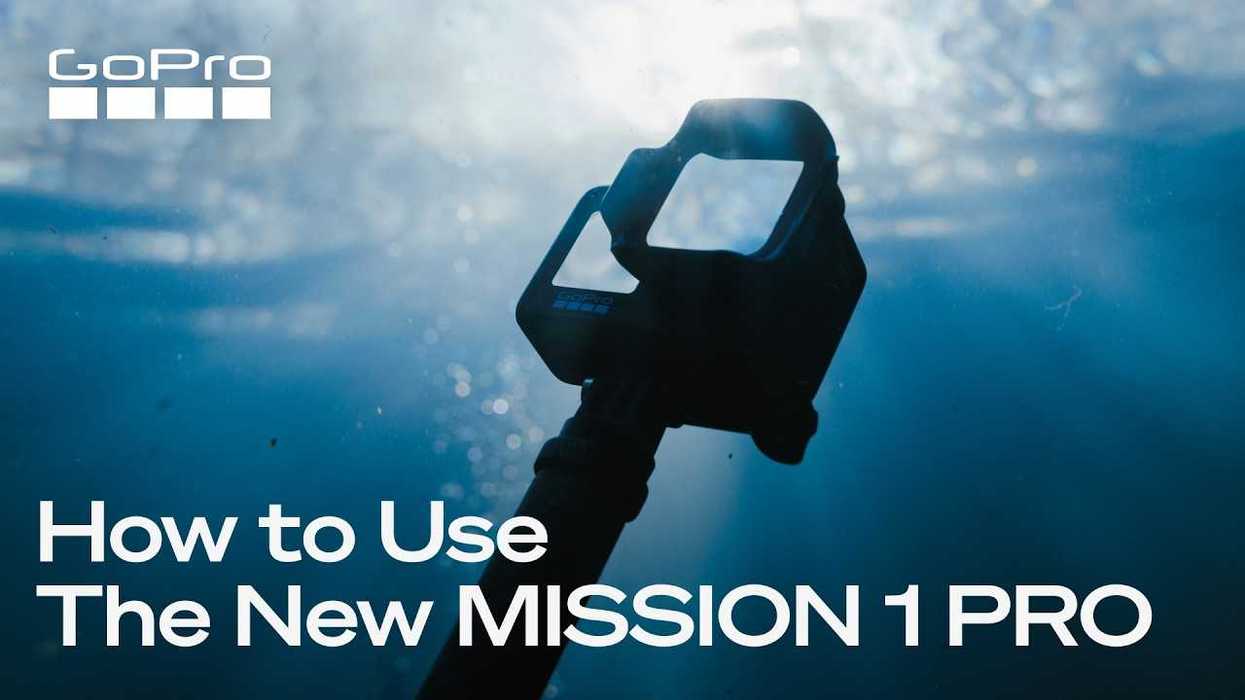
Looking predominantly at a very thorough and in-depth guide put out by GoPro on the company’s GoPro Tips YouTube page, this video serves as not only a nice introduction to the Mission 1 Pro and what it’s capable of, but it also goes through pretty much every little step you’ll need to consider to get up and running with the Mission 1 Pro right out of the box.
What’s most interesting about the Mission 1 Pro, too, to many aspiring filmmakers and potential users, is that it not only has specs which are quite intriguing with its 50MP 1” image sensor, GP3 processor, and 8K30 and 4K120 OpenGate video capabilities, but it’s also still… you know… a GoPro, so its learning curve is about as accessible as they come—especially if you’ve used GoPro action cams in the past.
And that’s where this guide kicks off, assuming you know just a tiny bit about action cameras and perhaps cinema cameras to begin with; the getting-started period is quite short and accessible for all.
The Steps to Getting Started
Again, based on the video above, here’s a breakdown of all the steps to get started with the GoPro Mission 1 Pro, outlined by timestamps.
Chapters:
- 0:00 Introduction
- 0:15 What’s In The Box
- 0:25 Camera Basics
- 1:50 Quik App
- 2:40 Setting up Auto Upload
- 3:26 Touch Screen Display
- 5:41 SD Card Status
- 6:16 Front Display Settings
- 6:48 Intelligent Capture Modes
- 7:50 Customizing Presets
- 9:25 Bluetooth Pairing
- 11:33 Anti-Flicker
- 11:50 M-Series Lenses
- 12:28 Mounting
- 14:06 Start Recording
The video encourages potential users to find further access to more best practices and pro tips on the same channel or to head to the company’s Mission 1 series page here.
Price and Availability
Or, if you’ve seen enough and are ready to dive in now, here are the full specs and purchase options for the GoPro Mission 1 Pro.
- 50MP 1" Sensor & GP3 Processor
- Ultra-Wide 159° Fixed Lens
- 8K30 & 4K120 Open Gate (4:3) Capture
- 8K60, 4K240, & 1080p960 Video Recording
- HDR, 10-Bit, GP-Log2, & Timecode Sync
- Enhanced Low-Light & Dynamic Range
- 32-Bit Float Audio Recording
- Waterproof to 66'; Larger OLED Display
- Improved Runtimes & Thermal Performance
- Raw Image Capture & Bursts up to 60 fps
GoPro MISSION 1 PRO
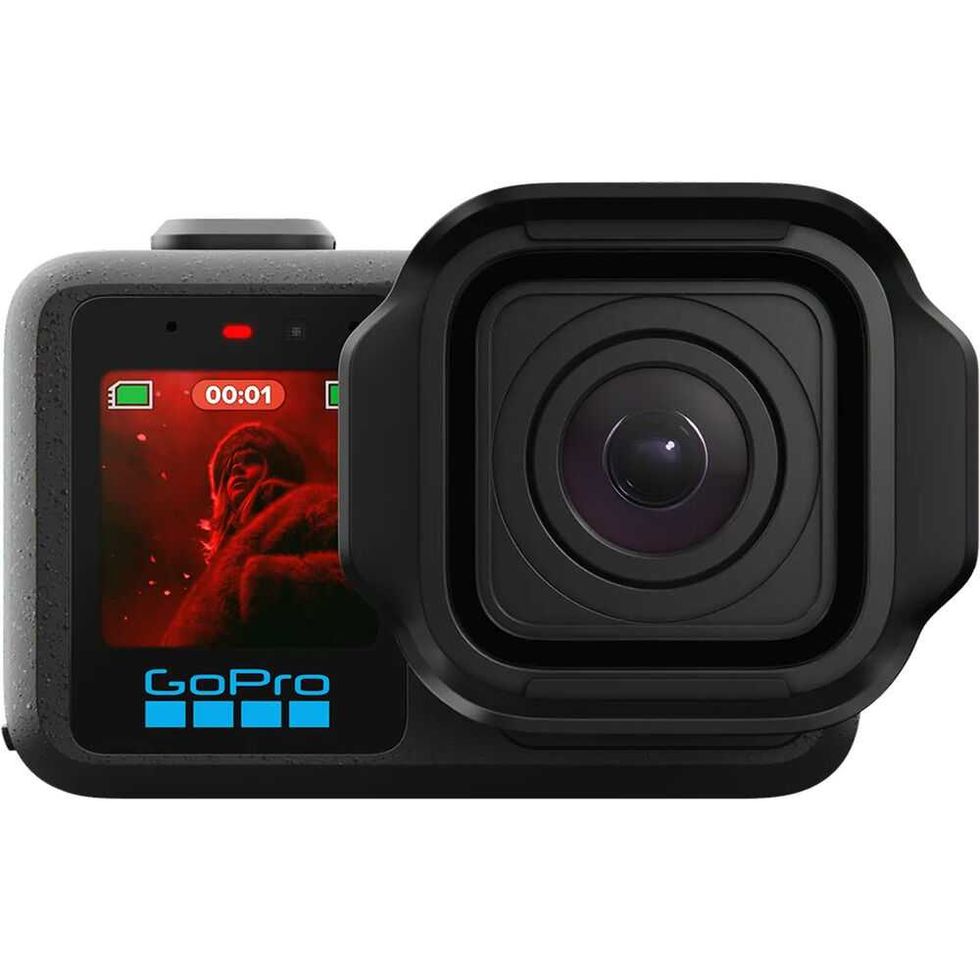
Taking cine characteristics and squeezing them into an action camera form factor, the GoPro MISSION 1 PRO features a 50MP 1" image sensor and GP3 processor to easily capture up to 8K30 and 4K120 OpenGate video. Dedicated low-light capture and a wide 14-stop dynamic range make for efficient image capture in any environment.
- How GoPro's MISSION 1 Line Has Revitalized the Cinema Camera Market ›
- How to Hack a GoPro Into a Multi-Lens Camera ›
- Get a Glimpse of the Next Generation of GoPros With This Latest Teaser ›
- GoPro Fires Back at DJI and Insta360 With New Flagship MAX2 360° Action Camera ›
- Think You’re a GoPro Hero? Check Your Skills Compared to the Best Action Cam Pros ›
- Will the New GO Ultra Vault Insta360 Pass GoPro in the Action Camera Game? ›
- GoPro App for Desktop Lets You Quickly Edit & Upload Your Action Camera Videos ›
- GoPro Officially Launches its MISSION 1 PRO ILS and New MISSION Monitor App | No Film School ›
- Ready for the New GoPro MISSION 1 PRO ILS? This Ultimate Creator Kit Is Already On Sale | No Film School ›
- Can the GoPro MISSION 1 Pro ILS Actually be Used for Capturing High-End Cinematic Video? | No Film School ›